A transparent background, ready for any layout.
A cut-out with a transparent background can sit on a banner, a lookbook page, a coloured tile or a size chart. Herofab removes the background from a product photo or an on-model image and delivers the result as a PNG; the product itself is not redrawn.
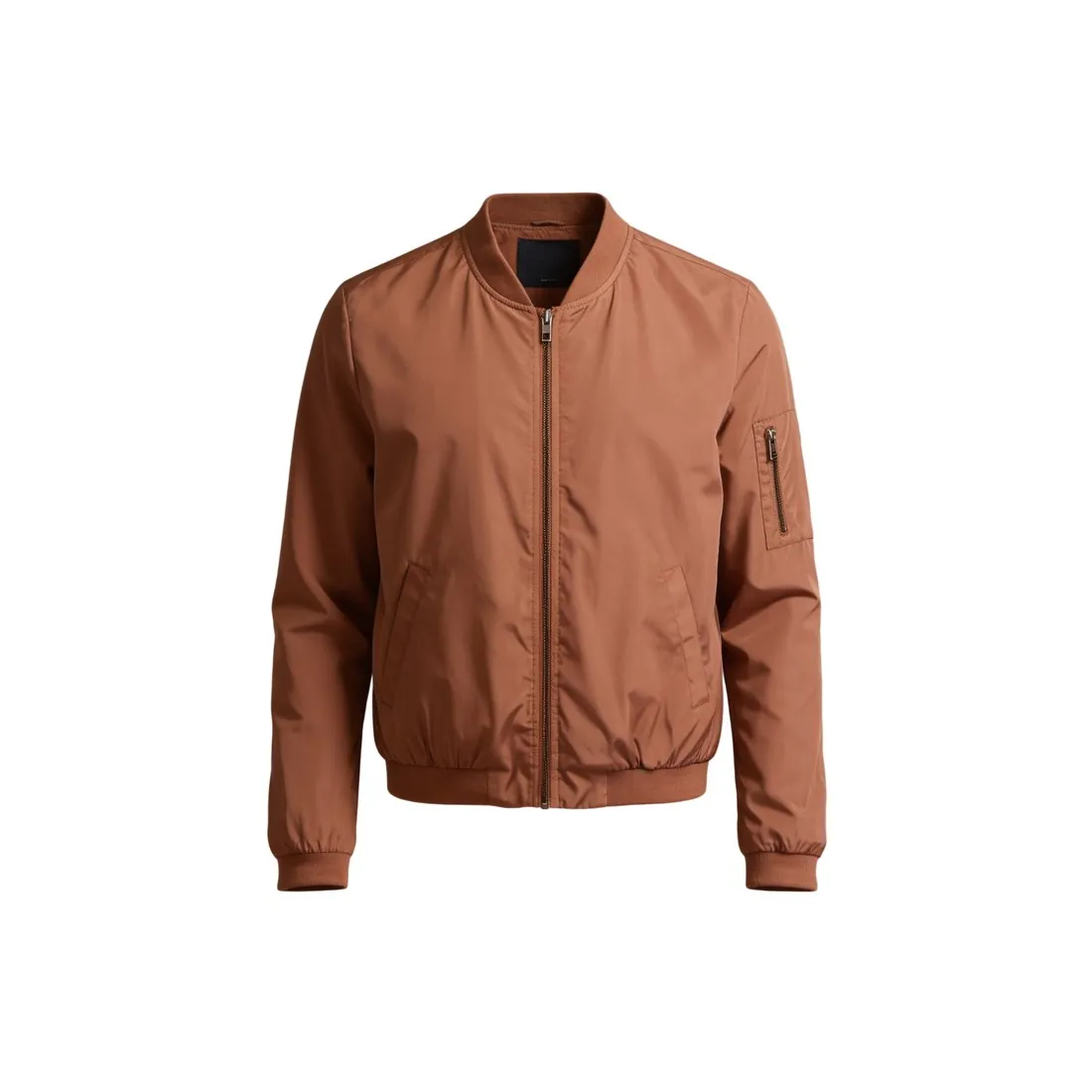
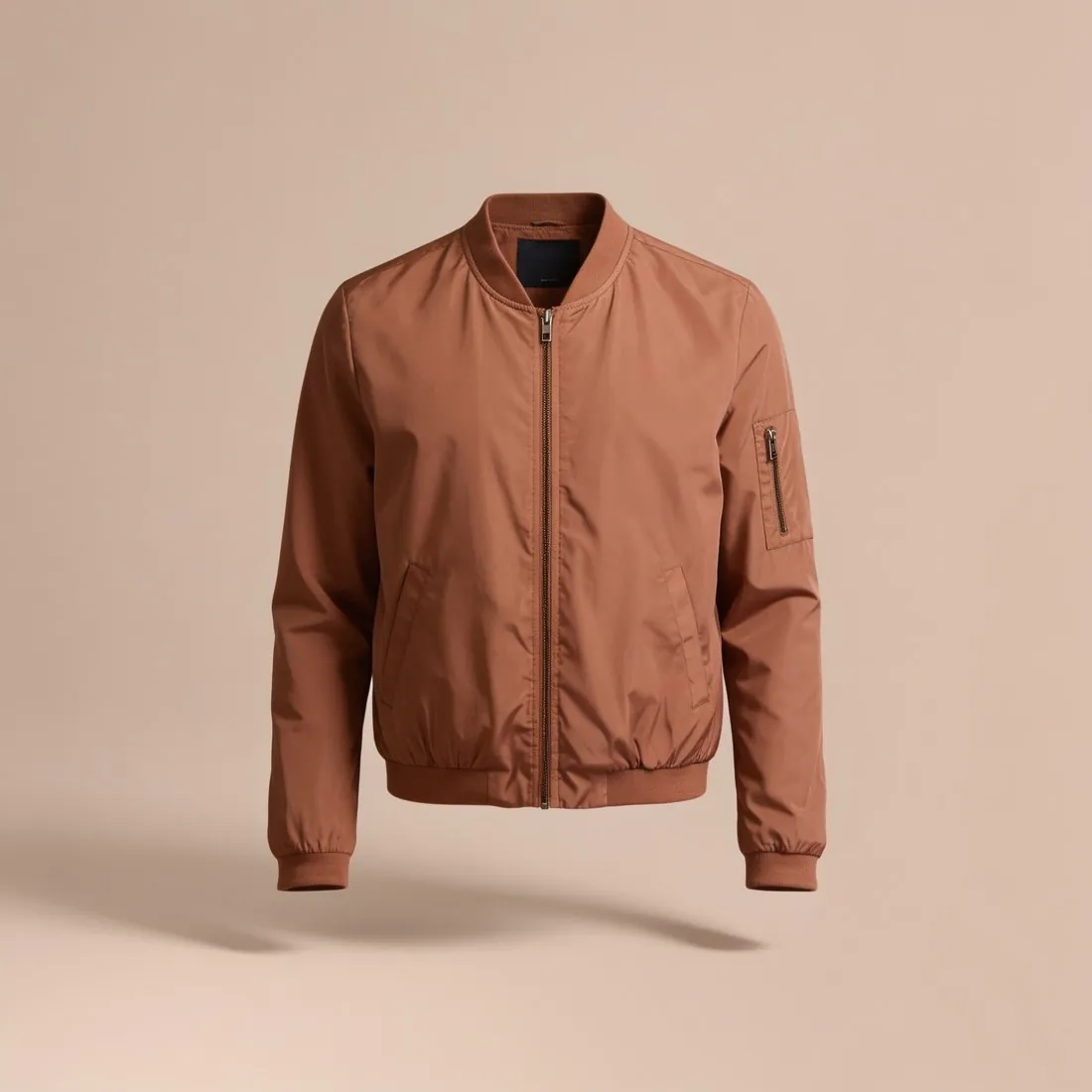
What a clean cut-out depends on.
- 1
Edges decide everything
On a transparent background there is nothing to forgive a rough edge. Fine hair, fringe, lace, fur trim and see-through fabric are the hardest outlines, and the cut-out is briefed to keep them. Place the PNG on a dark and on a light colour and inspect those edges on both.
- 2
Shadows that belonged to the old scene
A shadow cast on the floor or the table is part of the background and goes with it. A shadow on the product itself, such as a fold or the shade under a collar, belongs to the product and stays. Decide in the layout whether the cut-out needs a new shadow under it.
- 3
Colour fringes from the old background
A product shot against a strongly coloured wall can carry a thin rim of that colour, most visibly on white and on glossy surfaces. It shows as soon as the cut-out is placed on a different colour. Shooting against a neutral ground avoids it at the source.
Photographing a product for a transparent cut-out.
- Use a plain background that contrasts with the product: light behind dark products, mid-grey or dark behind white ones.
- Keep the whole product inside the frame with space on every side; an edge that touches the border of the photo ends in a straight cut.
- Light the product evenly and avoid a hard cast shadow that overlaps its outline, which makes the edge harder to find.
Transparent background for products, answered.
In which format is the transparent result delivered?
As a PNG, the common image format that carries transparency. A white or grey result can be chosen instead when the image goes straight into a listing, and any result can be downloaded in marketplace sizes without cropping.
Can I cut out an image that was not made with Herofab?
Yes. Any product photo or on-model image the seller has the rights to use can be uploaded. The tool removes the background and leaves the product as photographed, with its creases, its folds and its own shading.
Is the product changed when the background is removed?
No part of the product is redrawn; only the background is taken away. That also means a crease, a stain or a hanger hook that is in the photo stays in the cut-out, so prepare the product before the shot.
How much does it cost?
1 credit per image. The cost is shown before you generate, and if a job fails the credits are returned. The 20 free credits at sign-up cover 20 images with this tool.
Your next collection, shot this week.
20 credits at sign-up, no card required. Images made with free credits carry a watermark.