Language: EN
Start free

A new pose, the same look.

Change pose renders an image of a model wearing your product in a new pose, so one shot becomes several images for a product page.

4credits per image · 4K +1
Start free

Updated

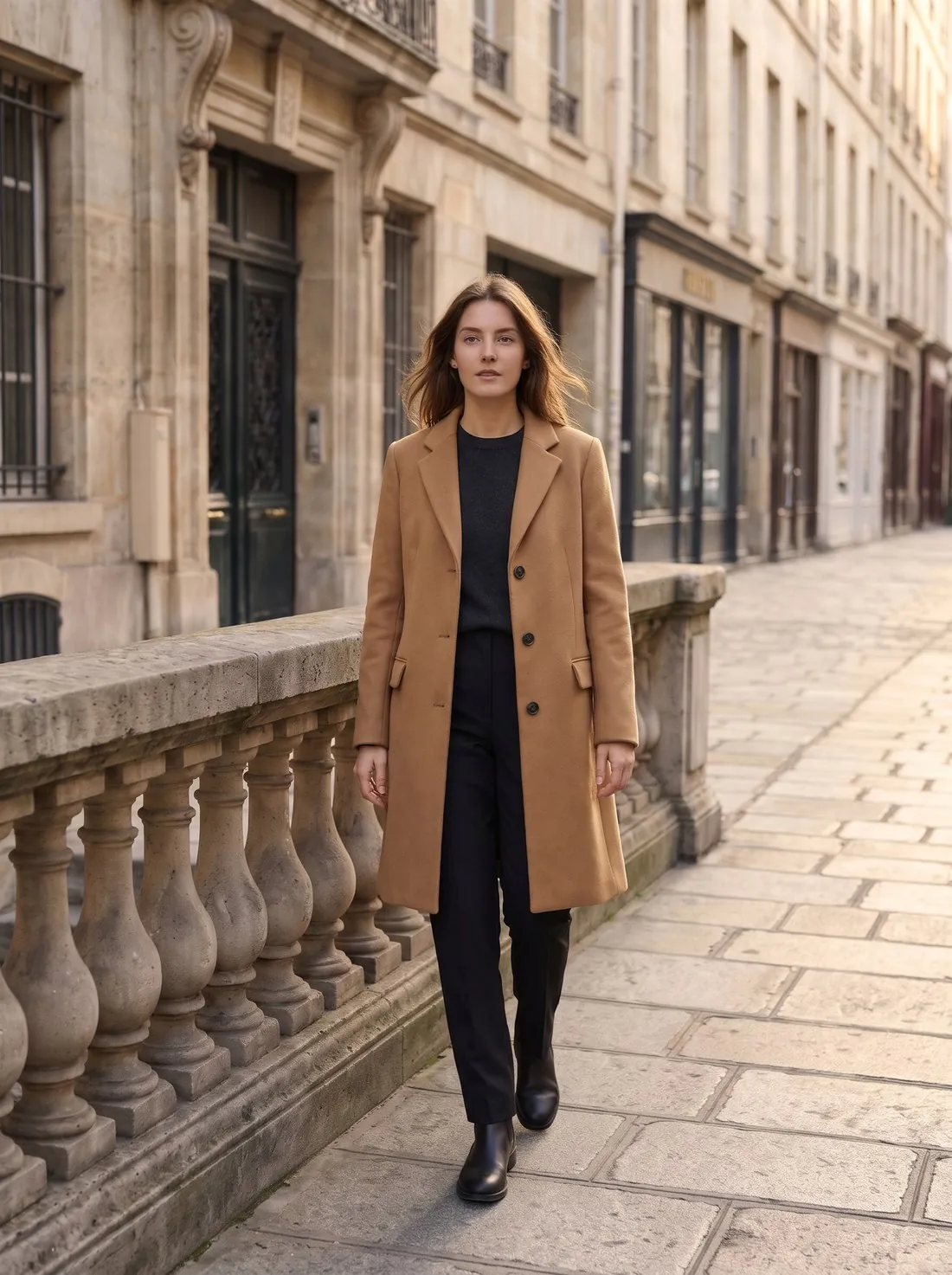
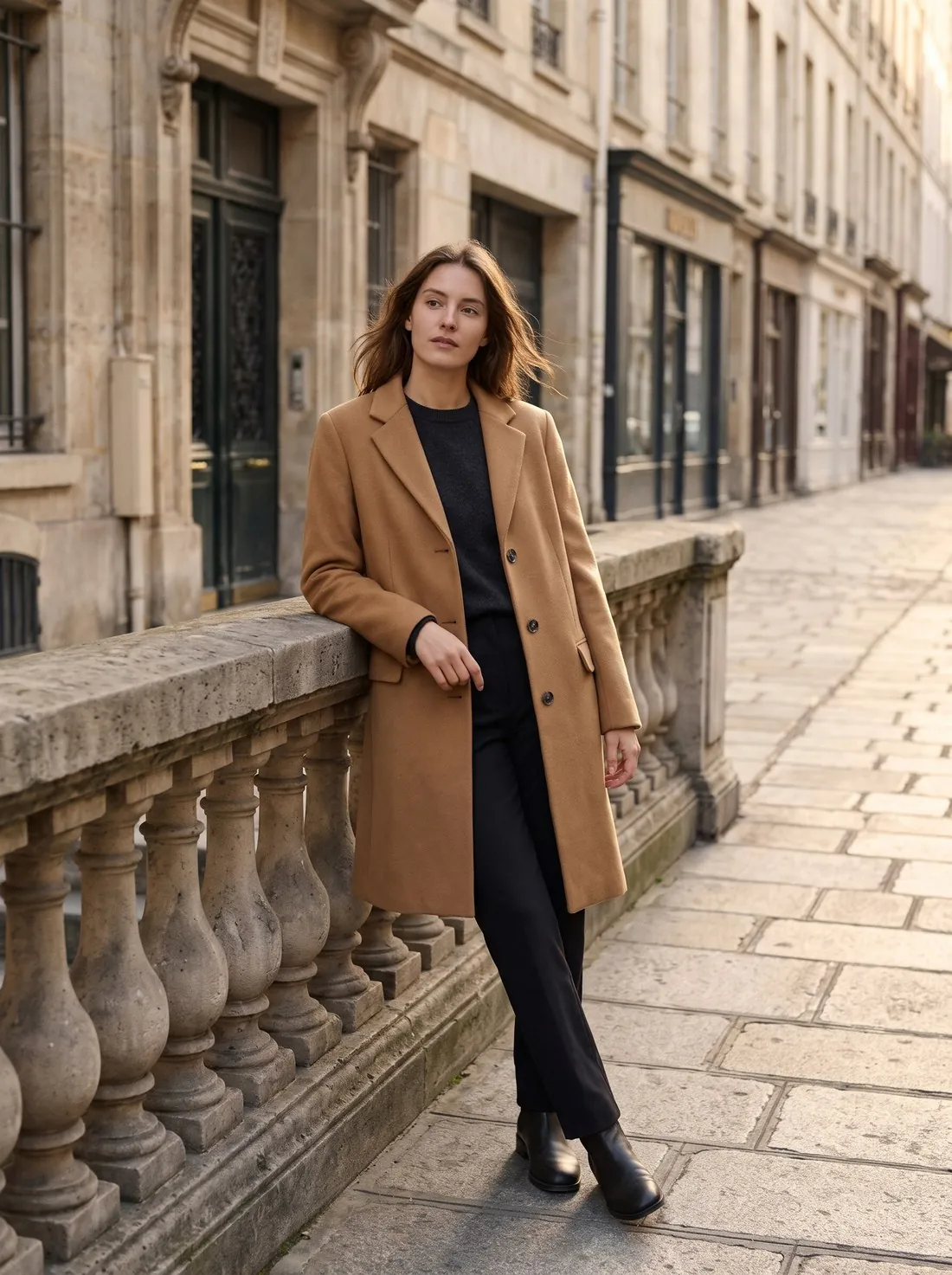
The same model and camel coat, now walking along the street · Change pose
Source photo: Herofab image. Made with Herofab · Change pose

How it works

  1. 1

    Upload the image

    Any image of a model wearing the product — including one made with Herofab.

  2. 2

    Choose the pose

    Ten poses, from standing front to sitting and close-up.

  3. 3

    Receive the image

    Delivered in 2K, or 4K for one extra credit — then download it in any of 20 marketplace sizes at no extra credit.

Options

What you can set.

Every option below is part of the Herofab studio.

Poses
Standing front, three-quarter, walking, hands on hips, hands in pockets, arms crossed, leaning, sitting, looking away, close-up
Formats
1:1, 3:4, 4:5, 2:3, 9:16, 4:3 or 16:9 · 2K or 4K
Marketplace sizing
20 marketplace sizes at download, without cropping or extra credits

What Change pose alters and what it is briefed to keep

Change pose takes one image of a model wearing the product and redraws the person in the pose chosen: standing, a three-quarter turn, walking towards the camera, hands on hips or in pockets, arms crossed, leaning, sitting, looking away, or an upper-body close-up. Apart from the format and the resolution, the pose is the only setting. The tool has no model, background or garment option, and the delivered image is a single photograph of one person.

Everything else is briefed to stay: the same person, the same garment, the same background and the same light. For the garment the brief is specific. Prints, logos and lettering, the number and position of buttons, zips and pockets, the weave, ribbing and pattern scale, the colours, and the cut with its sleeve length, hem length and collar are all named as things to keep, and nothing is to be added to a plain garment. This is an instruction to the tool, not a promise of an identical copy.

When Change pose fits and when another tool fits better

Change pose is the right tool when an on-model image already exists and the product page needs more of it: a walking frame beside the standing one, a seated view, a closer crop of the upper body. It starts from a delivered Herofab image or from any other image of a model wearing the product, so the product photo does not have to be uploaded again. Leaning and sitting poses are briefed to use a wall, railing, step or chair already in the scene, or a plain surface or stool on a studio backdrop.

When the work starts from the product photo, Virtual try-on is the more direct route: several poses of the same model can be ordered together there, and the model, the background and a front and back view are chosen in the same step. A back view is a setting of Virtual try-on, not one of the poses. For a new aspect ratio without a new pose, Extend frame widens the scene around the original image, and for a close view of one detail such as a collar or a cuff, Detail shot frames that area.

What to check in a new pose before publishing

Place the new image beside the source and compare the garment first. Poses that turn the body away from the camera are where pockets, buttons and prints are hardest to keep, so count the buttons, find each pocket and read any lettering. Arms crossed and hands in pockets cover part of the garment by nature: a chest print hidden behind the forearms belongs to the pose, while a print that has moved or changed is a reason to generate again or to choose another pose.

Then look at the person and the frame. The brief asks for one anatomically correct person, so hands, fingers and feet deserve a glance, most of all where hands rest on hips or disappear into pockets. Sleeve and hem length should match the source once the change of posture is taken into account: a seated pose folds a skirt or a coat at the lap without making it shorter. The background and the direction of the light should read as the same place as in the first image.

Questions

Change pose, answered.

Can I continue from a try-on result?

Yes. Any delivered image can be sent straight to the next tool — try-on, then a new pose, then a new format.

Does a new pose change the garment?

It is briefed not to: the same person, the same garment, the same background and the same light are kept. Check pockets, buttons and prints on poses that turn the body away from the camera, where they are hardest to keep.

Which poses can I choose?

Standing front, three-quarter, walking, hands on hips, hands in pockets, arms crossed, leaning, sitting, looking away, close-up. Each new pose is a separate image of the same look.

Which formats does the new pose come in?

1:1, 3:4, 4:5, 2:3, 9:16, 4:3 or 16:9, in 2K or 4K. 20 marketplace sizes at download, without cropping or extra credits.

How do I get more poses of one look without a reshoot?

Upload any image of a model wearing the product, including one made with Herofab, and choose a pose: standing front, three-quarter, walking, hands on hips, hands in pockets, arms crossed, leaning, sitting, looking away or close-up. Change pose renders the same look in that pose and is briefed to keep the same person, garment, background and light; each pose is a separate image. Check pockets, buttons and prints on poses that turn the body away from the camera.

Can the starting image be a photo from a real shoot?

Yes. Change pose accepts any image of a model wearing the product, including one that was not made with Herofab. The person, the garment, the background and the light of that photo are briefed to stay, and only the pose is changed. A sharp, evenly lit source with the whole garment in view gives the tool more to read.

What does the model lean against or sit on?

The background of the source image is briefed to stay, so a leaning or sitting pose uses something already in the scene: a wall, a railing, a rock, a step or a chair. On a plain studio backdrop the model leans against a plain surface or sits on a simple stool. Check that the support looks natural where the body meets it.

How much does it cost?

4 credits per image, plus one credit for 4K. In US dollars that is $0.16 to $0.48 per image before tax, from the largest plan to the smallest credit pack. The cost is shown before you generate, and if a job fails the credits are returned. The 20 free credits at sign-up cover 5 images with this tool.

Examples by product
Glossary
Guides
Related tools
Get started

Your next collection, shot this week.

20 credits at sign-up, no card required. Images made with free credits carry a watermark. Herofab also removes the watermark from those images once credits are purchased.