What makes a good AI product photo prompt?
A good AI product photo prompt has five parts: the reference, the scene, the light, the format and the preservation list. Anything a prompt leaves open is decided by the model.
OpenAI's prompting guide says that for edits, you should “say ‘change only X’ and list the details to preserve”. Google's guidance is close: “Be explicit about what to keep exactly the same.”
| Part | Example wording | What it prevents |
|---|---|---|
| Reference | Use the attached photo as the only product reference | A generic product of the same type |
| Scene | On a pale stone surface beside a window | A busy, invented setting |
| Light | Soft daylight from the left, one soft shadow | Mixed shadows and flat lighting |
| Format | Square, or portrait 4:5 | A crop that needs rebuilding later |
| Preservation list | Keep the shape, colour, logo and stitching exactly | Silent changes to the product |
How do I protect the product in a prompt?
To protect a product in a prompt, name every detail that must stay the same, limit the change to one element and repeat that list in every follow-up message. Paste this preservation block at the end of any prompt on this page, and delete the parts that do not apply:
Preservation block: Keep the product exactly as in the reference photo: the same shape, proportions, colour, material, logo, label text, stitching, hardware and number of parts. Change only [the element]. Do not add or remove any part of the product. Do not add new text, logos, watermarks or extra products.
Name details specifically. Google's documentation says that to preserve a face or logo during an edit, describe it in great detail along with the request, so “the oval logo on the left chest” is a stronger instruction than “logo”.
OpenAI's cookbook advises repeating the preserve list “on each iteration to reduce drift”. When a detail has already changed, go back to the original photo, because the changed image would otherwise become the reference.
For exact wording, put the words in quotes. OpenAI advises this and then a spelling check on the output; Google's prompting guide gives the same advice on quotes. For a logo that must be perfect, leave it out of the generated image and add the real artwork in an image editor afterwards.
A preservation block lowers the risk and does not remove it. Herofab briefs tools such as Virtual try-on and Canvas to keep the product as photographed, and its automatic check still flagged 20.8% of 303 images, with an invented detail in 9.6%. Those figures describe Herofab's tools, not ChatGPT or Gemini, but they show why a check is needed after any instruction. The check covered images made between 24 September and 12 October 2026, before Herofab's late-October image engine change.
See the 303-image error measurement
Which prompts work for each type of product photo?
The eight prompts below cover the product images most sellers need, and each one takes a reference photo. Replace the words in square brackets, and paste the preservation block where the prompt shows [Preservation block]. Run one prompt per message. When a back view or close-up is attached too, drop the word “only”, number the images and say what each one shows, as OpenAI's ChatGPT documentation advises for several reference images.
| Prompt | Purpose | What to check |
|---|---|---|
| Use the attached photo as the only product reference. Show this exact [product] alone on a plain white background, centred and filling most of the frame, in even soft studio light with a very soft contact shadow. Square format. No props. [Preservation block] | White background image for a listing | Measure the background: it may look white without being pure white. Check edges, proportions and any invented shadow. |
| Use the attached photo as the only product reference. Place this exact [product] on [surface] in [room or setting], in [time of day] light from the [left or right]. Keep the scene uncluttered, with the product in sharp focus as the main subject. Portrait 4:5. No people. [Preservation block] | Lifestyle scene for a product page or social post | Scale against nearby objects, matching reflections and shadows, and props that suggest extra items are included. |
| Use the attached photo as the only garment reference. Dress one adult studio model in this exact garment, standing front-on in a full-length shot on a plain light-grey background. Show the whole garment with natural folds. Keep the neckline, sleeve length, hem length, print placement and closures as in the photo. Portrait 3:4. One person only. [Preservation block] | On-model image from a hanger or flat photo | Collar, print position, hem, closures, inside labels, hands and the number of people. The image is not proof of real fit. |
| Use the attached photo as the only garment reference. Show this exact [garment] laid flat and seen from directly above, neatly arranged on [surface], in soft even daylight. Keep the full item in frame with even margins. Square format. No props. [Preservation block] | Flat lay for clothing and accessories | Garment length and shape, seam lines, neck label, and fabric texture that may have been smoothed away. |
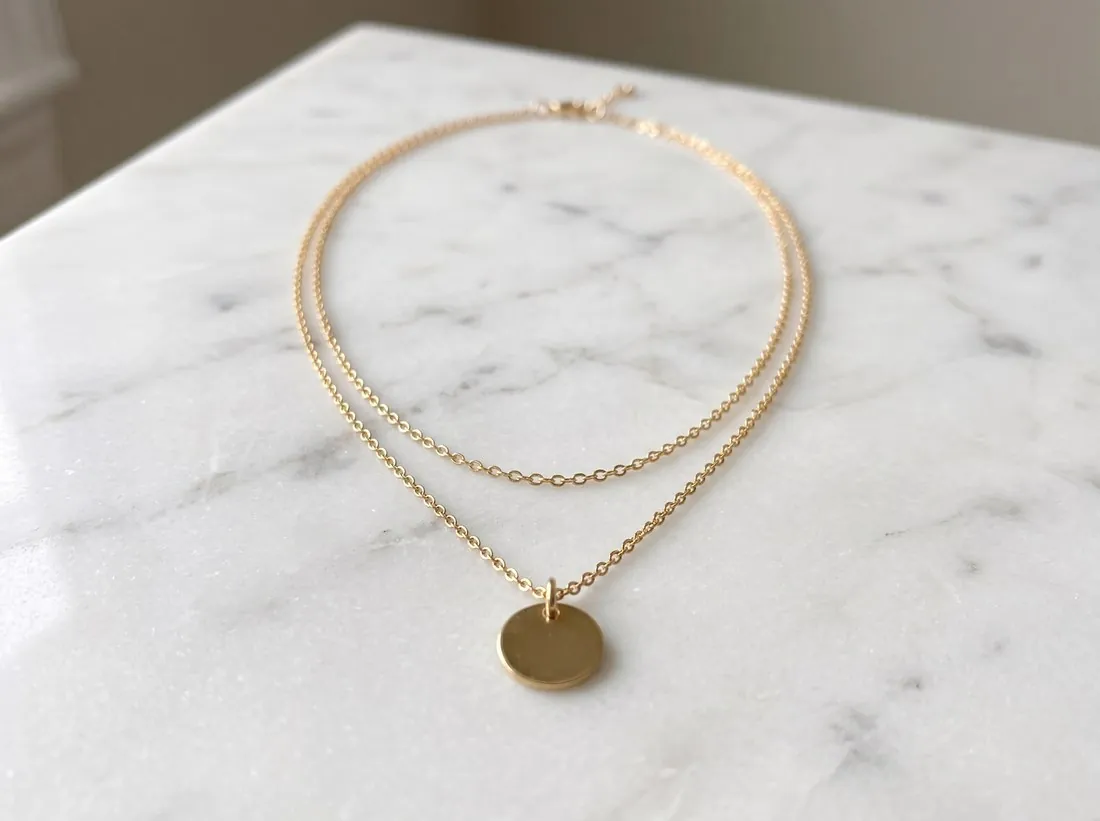
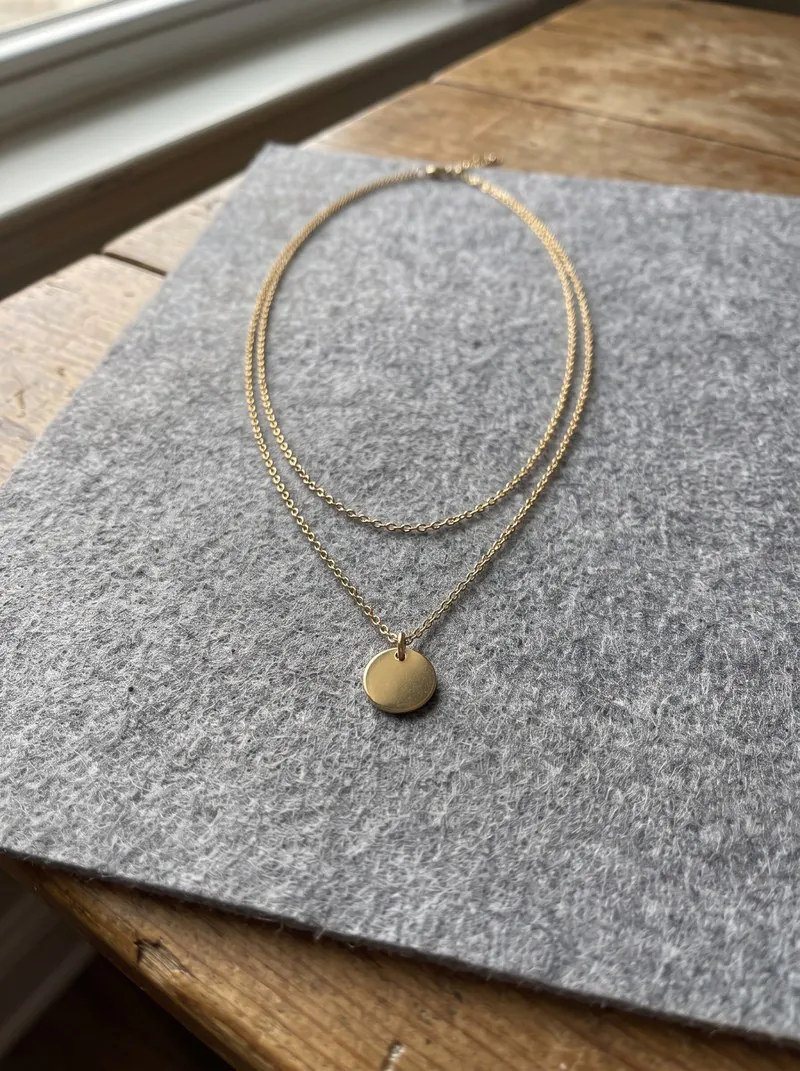
| Use the attached close-up as the only jewelry reference. Show this exact [ring, bracelet or necklace] on [matte stone, or a model's hand, wrist or neck] in a macro shot with soft diffused light and controlled highlights. Keep the metal colour, the finish, and the number, cut and position of every stone. One piece only. Square format. [Preservation block] | Jewelry close-up or on-hand image | Count every stone, then check prongs, chain links, clasp, metal colour and the fingers of the hand. |
| Use the attached photo as the only garment reference. Create the first image of a clothing lookbook: one adult model with [age range, hair and build], wearing this exact garment with plain [colour] styling, in [location], full-length, in [light]. Portrait 4:5. [Preservation block] | First lookbook image, which sets the model and mood | Garment details, plus a face and styling you are willing to repeat in every later frame. |
| Keep the same model, outfit, location and light as the previous image. Change only the pose to [walking or three-quarter view]. [Preservation block] | Later lookbook images in the same chat | Compare face, hair, skin tone and print position with the first frame, not only with the last one. |
| Using the attached image, change only the colour of the [product] to [named colour], keeping the same fabric texture, stitching, shadows and folds. Keep everything else in the image exactly the same. | Colour variant of an existing image; the last sentence comes from Google's editing template | Compare with a physical swatch in daylight. A photographed variant is safer when the colour is hard to reproduce. |
Check whether a background is really white, free
How should I change a prompt for ChatGPT, Gemini and similar tools?
The same five-part structure works across ChatGPT and Gemini; only the opening line and the iteration habit change. Google's documentation offers the opening “Using the provided image, change only the [specific element] to [new element/description]” and recommends multi-turn conversation for iterating.
| Tool | Opening line | Follow-up habit | Note |
|---|---|---|---|
| ChatGPT | Use the attached photo as the only product reference. | One change per message; repeat the preserve list | OpenAI advises asking for no extra text, then checking spelling |
| Gemini and Nano Banana | Using the provided image of [product], ... | Multi-turn chat; say what stays the same each time | End with: Keep everything else in the image exactly the same. |
| Any tool without an image input | Concept prompt only | Treat the output as an idea | Not suitable for a listing of a specific item |
Read the Gemini and Nano Banana guide
What are the best Nano Banana prompts for a clothing brand?
The best Nano Banana prompts for a clothing brand reuse one fixed style line across every image, so that only the garment and the pose change. Write the line once and paste it into each prompt, for example: Soft overcast daylight, muted colours, plain concrete wall, natural skin texture, full-length framing, portrait 4:5.
Keep one set of model reference images for the whole collection. Google's documentation lists up to four character images on Nano Banana 2.1, and up to ten object images for products. OpenAI's image guide warns that a model “may occasionally struggle to maintain visual consistency for recurring characters”. Expect to reject some frames.
Print placement needs particular attention in a lookbook set. Upload a flat, straight-on garment photo and name the position in words, such as: Keep the chest print centred, with the same gap to the neckline as in the photo.
Read how to keep the same AI model across photos
Which prompt mistakes ruin AI product photos?
The most damaging prompt mistake is asking a model to improve the product, because “improve” gives it permission to redesign the item. The table reflects Herofab's editorial judgement, not a measured ranking.
| Mistake | What happens | Better wording |
|---|---|---|
| Make it look more premium | Materials and shape are redesigned | Change only the light and background |
| No preservation list | The model fills gaps by itself | Paste the preservation block |
| Asking for small label text | Letters are redrawn wrongly | Keep the real label; add text in an editor |
| Editing a drifted image | Errors carry forward | Restart from the original photo |
When will a better prompt not fix the result?
A better prompt will not fix a result when the source photo lacks the detail, when small text must be exact, or when the image has to prove real fit. A user on Google's developer forum reported on 30 September 2025 that logos changed even when the prompt asked to keep the product “exactly the same”.
A sensible limit is three attempts from the original photo. After that, reshoot the source photo with the detail in view, composite the real product into a generated background in an image editor, or use a real photo for that image. For a flagship product, a studio shoot remains the safer choice.
Read how to stop AI changing your product
Do dedicated AI product photo tools need prompts?
Many dedicated AI product photo tools replace the prompt with form options, so the seller picks a product, model, pose or background instead of writing instructions. Herofab's standard tools need no prompt, and tools such as Virtual try-on and Packshot studio are briefed to keep the product as photographed. Canvas is the exception: it takes a written brief of 10 to 500 characters.
The accuracy check stays the same. A form saves writing time; it does not remove the need to compare the result with the real item.
Check an AI product photo before publishing
Checklist
- Start every prompt from the original photo of the real item.
- Paste the preservation block and delete what does not apply.
- Request one change per message and repeat the list.
- Compare the result with the real item at full size.
- Stop after three failed attempts and change the method.
Sources
- OpenAI ChatGPT docs: Image generation
- OpenAI API docs: Image prompting
- OpenAI API docs: Image generation
- OpenAI Cookbook: GPT Image models prompting guide
- Google AI for Developers: Image generation
- Google Cloud: Ultimate prompting guide for Nano Banana, 6 March 2026
- Google AI Developers Forum: How to keep logo intact on a product image
Checked 31 October 2026. Rules change; the official pages are the final reference.