Does AI keep a product's exact details?
AI image generators do not reliably keep a product's exact details. Shopify's guide to ChatGPT images, published on 22 September 2026, warns that such tools can “alter logos, typography, dimensions, stitching, packaging details, and other elements that need to remain exact”. OpenAI's own documentation says its model may struggle to keep brand elements consistent across generations.
The figures below are one tool's measurement, not an industry average. Between 24 September and 12 October 2026 Herofab generated 311 product images from 212 product photos, and an automated vision check compared 303 of them with the product photo. The set is Herofab's own test cases, including deliberately hard inputs and earlier prompt versions, so it describes raw generations rather than images delivered to customers. The percentages are derived from the check's raw counts; 92.2% is this page's own calculation, 142 ÷ 154. It predates Herofab's late-October image engine change.
| What was compared | Images compared | Matched | Small differences | Wrong or changed |
|---|---|---|---|---|
| The whole product | 303 | 238 (78.5%) | 52 (17.2%) | 13 (4.3%) |
| Readable text on the product | 90 | 53 (58.9%) | 32 (35.6%) | 5 (5.6%) |
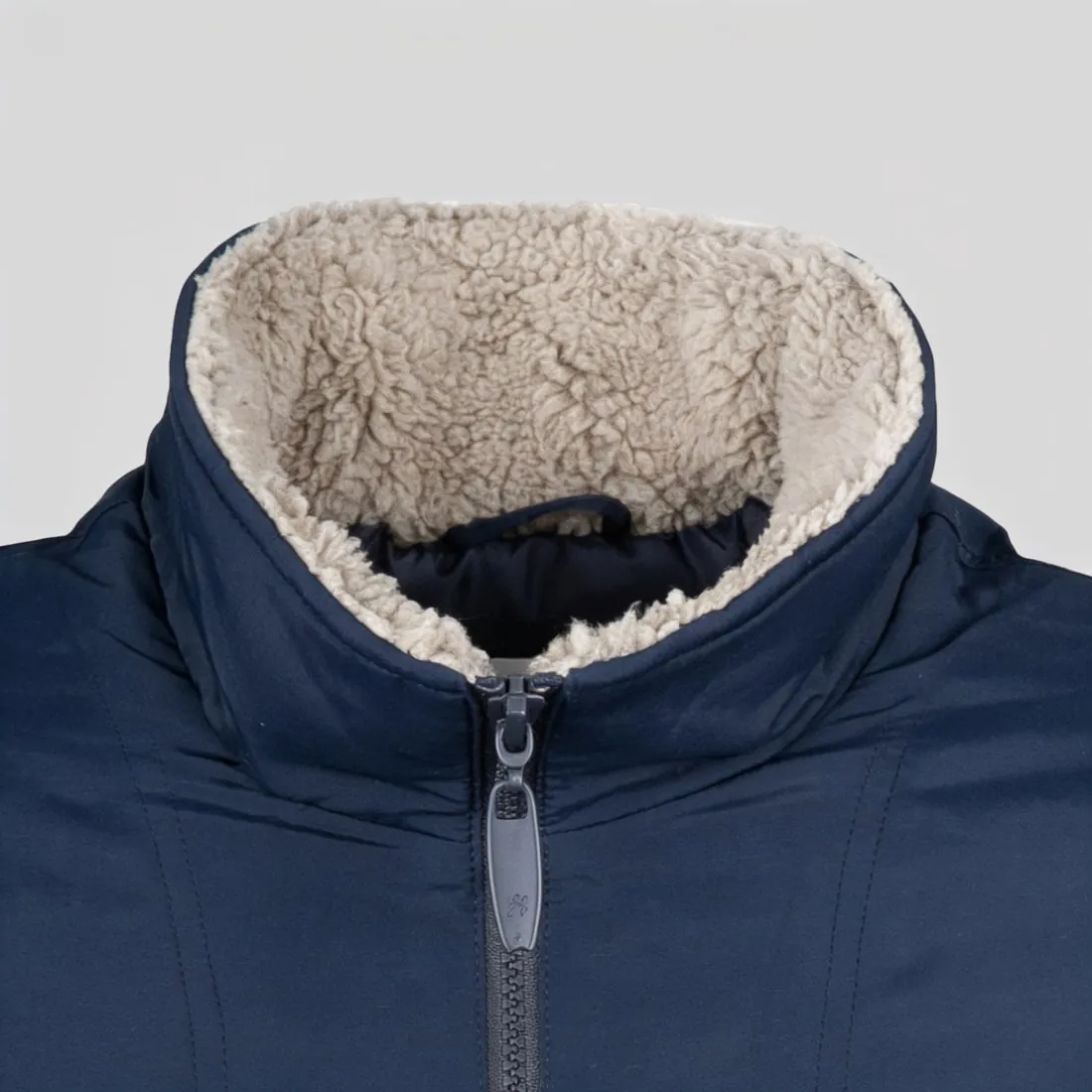
| Collar or neckline | 154 | 142 (92.2%, derived) | not a category | 12 (7.8%) |
See the full 303-image breakdown and its limits
Why does AI redraw a product instead of copying it?
AI image models redraw a product because an image-to-image model produces a new picture rather than editing the source file. The Hugging Face Diffusers documentation describes image-to-image as generating “a new image that resembles the existing provided image”. Latent diffusion models, the family behind Stable Diffusion, also work in a compressed representation of the image rather than on its pixels (Rombach et al., 2021). Fine detail that does not survive that step has to be rebuilt.
Rebuilding pulls a product towards common designs, so a crew-neck sweater can gain a hood. A prompt is a request and not a lock: one user on Google's AI developer forum reported in September 2025 that “the logos are changed regardless of the prompt”.
Higher fidelity reduces the problem without removing it. OpenAI's image guide says GPT Image 2 processes every image input at high fidelity, as read on 31 October 2026, yet the same vendor's prompting guide warns that “Repeated edits can still change details you intended to preserve.”
Which methods keep the captured pixels?
A product keeps its captured pixels only where a pipeline copies those pixels instead of generating them. A cutout is the clearest case: a segmentation step decides which pixels belong to the product, and those pixels are placed on a new background. No model draws the product, so nothing can be reinterpreted.
Paste-back gives the same protection for part of an image. OpenAI's prompting guide says: “If a region must remain pixel-identical, composite the approved edit into the original image instead of relying on prompting alone.” Diffusers offers an overlay method for the same purpose. A mask alone is no guarantee: OpenAI describes its mask as prompt-based guidance that may not follow its exact shape.
A cutout composite is therefore the one common method that replaces the whole setting and leaves the whole product as captured. It has limits: the product keeps the source photo's light, angle and creases, soft edges such as fringe are estimated, and it cannot put a garment on a body, because a sleeve on a model has to change shape.
Any tool's claim can be tested. Align the output over the source in Photoshop or GIMP and set the top layer to Difference: identical pixels show as black, and compression adds only faint noise.
| Method | What happens to the product | Captured pixels kept? |
|---|---|---|
| Cutout on white, grey or transparent | Copied; only the background changes | Yes, apart from edge pixels |
| Cutout composited into a scene | Copied; a shadow is added around it | Yes, but the light stays that of the source |
| Frame extension with paste-back | Original area pasted back over the output | Yes, inside the original frame |
| Marked-area fix with paste-back | Only the marked area is redrawn | Yes, outside the marked area |
| Mask without paste-back | The mask guides the model | Not guaranteed |
| Scene built from a reference photo | Redrawn to fit the new scene | No |
| Virtual try-on on a model | Redrawn to fit the body and pose | No |
Remove background: 2 credits, $0.08–$0.24 per image
How do I stop AI changing logos and text?
Logos and text stay exact only when they are copied from the real item or set as type after generation, not when a model draws them. Text was the weakest result in Herofab's measurement: of 90 images with readable text, 37 did not match fully, with 32 showing small differences and 5 wrong.
For a logo on the product, composite the real artwork or the photographed area back over the output in Photoshop, GIMP or Figma. For headlines and prices, generate the image without text and add the type afterwards. If a model must draw the wording, OpenAI advises putting it in quotes and spelling unusual names letter by letter.
Upload a sharp close-up of any label, and read every character at full size. Editing near lettering carries its own risk: in Herofab's Retouch group, 3 of 8 images were flagged for wrong text or logos, too few to carry a percentage.
Ad creative sets your text as real type: 5 credits, $0.20–$0.60 per image
Why does AI change a product's colour?
AI changes a product's colour for three separate reasons: the source photo was already off, the generated scene's light tints the product, or the redraw shifts the hue. Herofab's measurement has no separate row for colour, so no rate is given here.
Correct the source first: photograph the item in daylight with white balance locked, or with a grey card in frame.
Judge colour against the real item, on an evenly lit part, because a shadow or warm lamp in the source can make a material look darker than it is. Sampling the same area of both images with an eyedropper gives numbers to compare. Google Merchant Center asks that a photo reflect “the exact color, pattern, finish, and material”.
Colour variants: match a reference photo, 4 credits, $0.16–$0.48 per image
Why do plaid and complex patterns get distorted?
Plaid and other complex patterns get distorted because a model has to rebuild thin, repeating lines and then bend them around a body. Researchers behind the FitDiT virtual try-on model (2024) report “significant discrepancies in the details of the generated images, such as text and patterns”, and tie texture loss to diffusion structures that give less attention to high-resolution features. They note that SDXL assigns 92% of its parameters to the 32×24 resolution.
Look for lines that bend, change width or lose count, and for checks that do not meet across a seam, placket or pocket. Zalando's image guidelines treat “Unnatural texture, patterns, shapes, material behavior, or finishes” as an inaccurate representation.
Reduce the difficulty: photograph the garment flat and square-on, use a simple standing pose, and prefer a ghost mannequin or flat lay where the pattern is the reason to buy. Herofab's measurement has no separate row for pattern distortion.
Ghost mannequin: 4 credits, $0.16–$0.48 per image
What should I do for each type of failure?
Each type of product failure has its own likely cause and fix. The rates are the share of the 303 checked images flagged for each fault, so they differ from the first table, where text and collar use smaller bases and every row counts the check's raw answers. Those raw counts run one higher for product and collar, 13 against 12 and 12 against 11, because an answer becomes a flag only in tools where that question is part of the check.
| Failure | Measured rate | Likely cause | What to do |
|---|---|---|---|
| Invented detail | 9.6% | The model fills in what the photo does not show | Add the back and a close-up; remove the detail with a marked fix |
| Different product | 4.0% | The model drifted to a similar common item | Use a plainer, sharper source; regenerate from the original |
| Collar or neckline changed | 3.6% | The model leans to common necklines | Show the collar clearly in the source; add a close-up |
| Inside label showing | 3.3% | A neck or waistband label is drawn outside | Fix the marked area; photograph with the label tucked in |
| Wrong text or logo | 1.7% | Lettering is redrawn | Composite the real logo, or set text as type |
| Colour shift | not measured separately | Source, scene light or redraw | Correct the source; compare with the real item |
| Distorted plaid or pattern | not measured separately | Fine repeats are rebuilt | Simplify the pose; use ghost mannequin or flat lay |
| Wrong back or side | not measured separately | An unphotographed side is a guess | Photograph that side; do not publish a guess |
How to check an AI product photo before you publish it
Which products fail most?
Failure varies by product type. Within Herofab's Virtual try-on results, tops had 12 of 58 images flagged (20.7%), and trousers and other bottoms 8 of 11, too few to carry a percentage.
Automated checks have blind spots too: by eye, 9 of 19 scene images cut the product off at the frame edge, and the check flagged none of them.
When should I not use AI for product details?
AI is the wrong method when a buyer relies on a detail being literally true. That covers safety and certification marks, ingredient and care labels, serial numbers, and the condition of pre-owned or one-of-a-kind items, where a redraw can hide real wear.
Use a real photo for the main image in those cases, and keep AI for secondary images in which the detail is not shown. A studio suits reflective, high-value or heavily detailed items: ProductPhoto.com lists on-white photos from $40 per photo, as low as $30 with volume (checked 31 October 2026).
The requirements for AI images and how to mark them are in Herofab's guide to the 2026 rules, a summary and not legal advice.
AI product image rules for 2026
Checklist
- Keep the original photo open and compare at full size, not as a thumbnail.
- Read every letter, number and logo against the real item.
- Count buttons, pockets, rivets and stripes, and check that identical parts match each other.
- Check the collar, the closure and which side any print is on.
- Compare colour with the real item in daylight, on an evenly lit part.
- Follow plaid lines across seams, plackets and pockets.
- Check the frame edges by eye: no sleeve, leg or strap cut off.
Sources
- Herofab: AI product photo errors, 303 generated images checked
- Herofab: measurement data file
- Shopify: ChatGPT image generator guide (22 September 2026)
- OpenAI: Image generation guide
- OpenAI: Image prompting guide
- Hugging Face Diffusers: Inpainting
- Rombach et al.: High-Resolution Image Synthesis with Latent Diffusion Models (2021)
- Jiang et al.: FitDiT, Advancing the Authentic Garment Details for High-fidelity Virtual Try-on (2024)
- Google AI Developers Forum: How to keep logo intact on a product image? (2025)
- Google Merchant Center Help: Image link
- Zalando Partner University: Image guidelines
- ProductPhoto.com: Pricing
Checked 31 October 2026. Rules change; the official pages are the final reference.