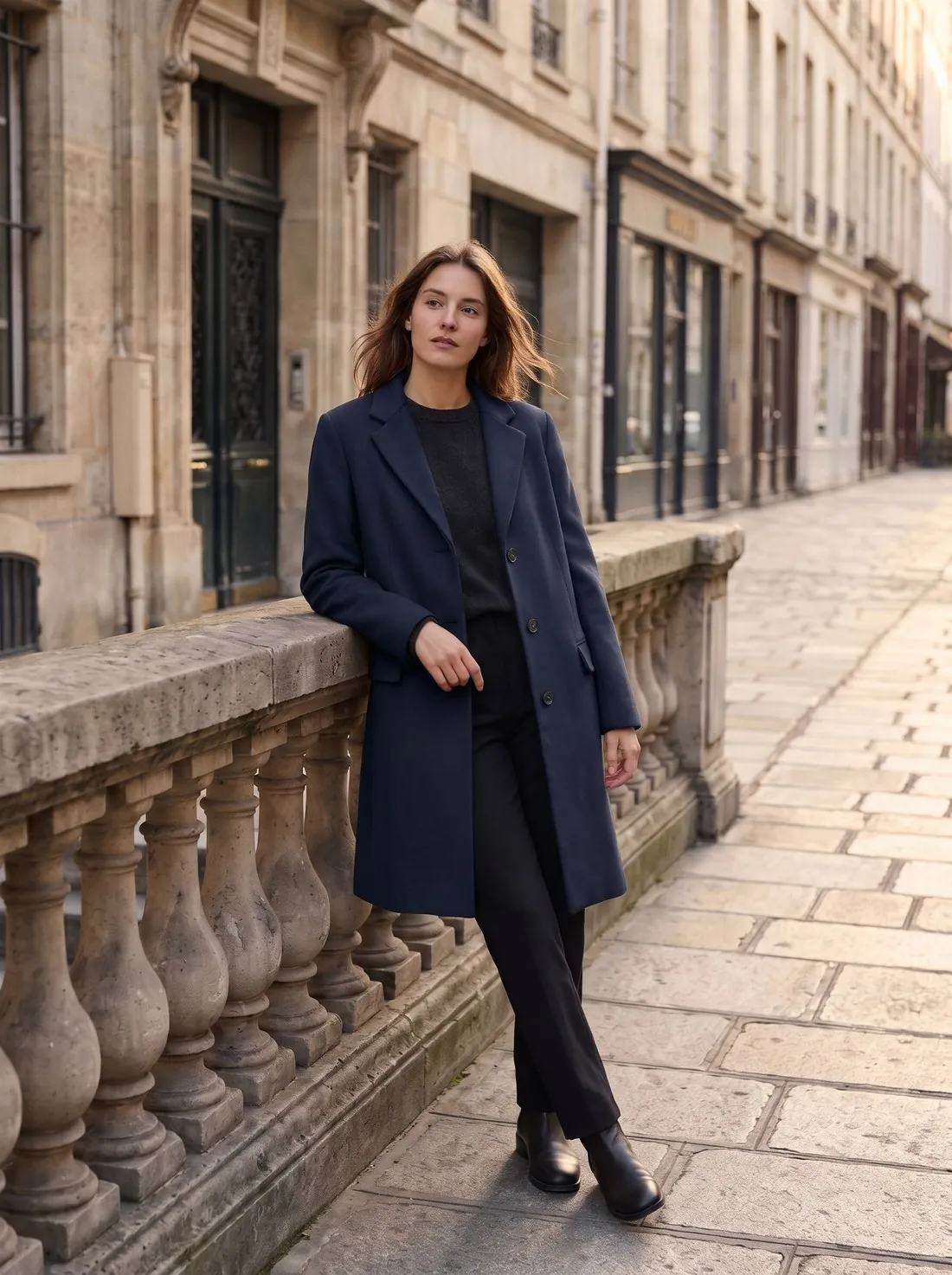
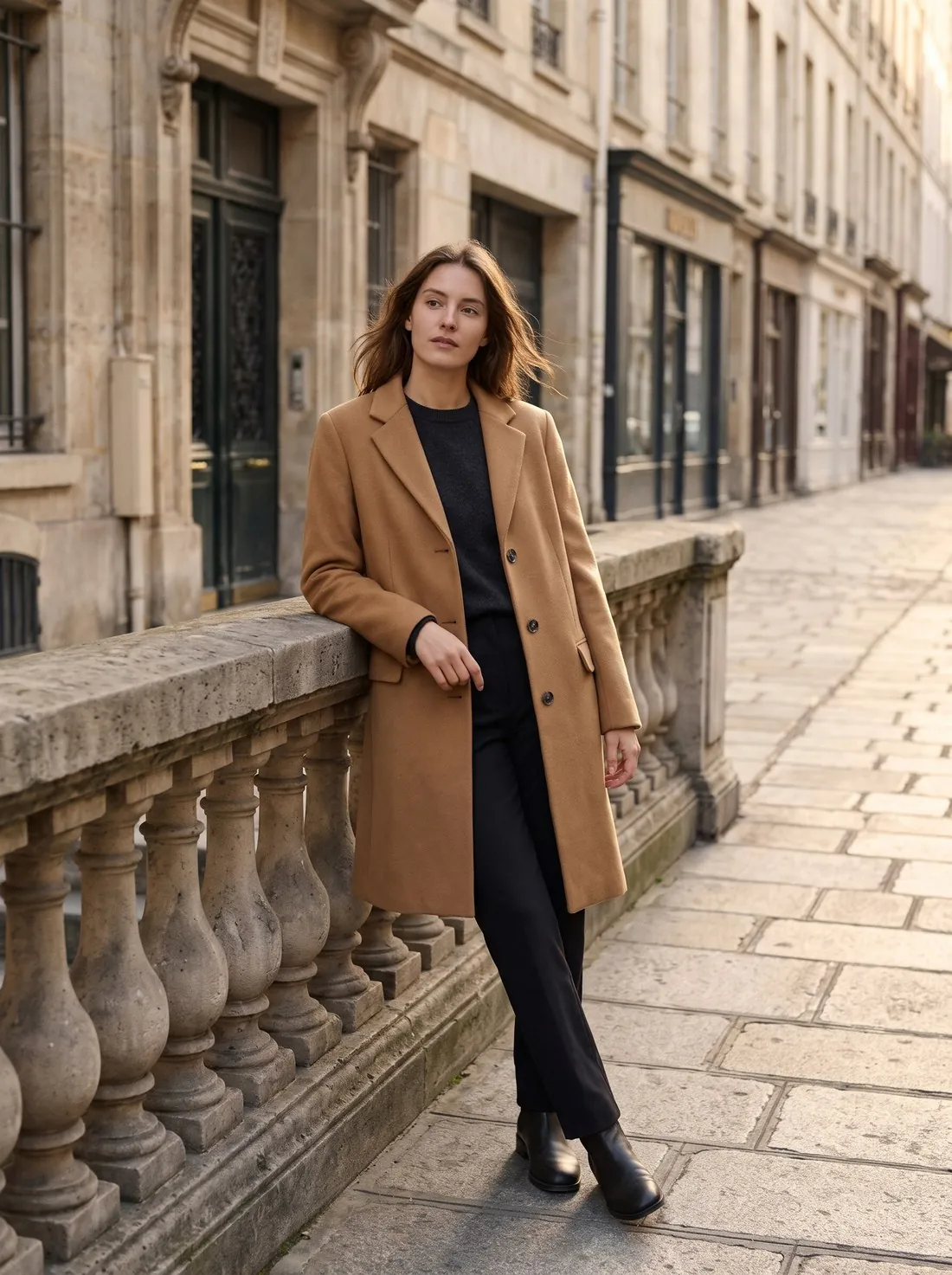
Which method should I use to change the colour of clothes?
The right method depends on how dark the garment is and how many colours are needed. A manual edit suits one or two images of a mid-tone garment. An AI colour tool suits a full colour range or a garment that is too dark for a hue shift. A reshoot suits a colour where the image has to be exact, such as a hero image or a fabric with a strong sheen.
| Route | Example tools | Fabric texture | Best for | Limit |
|---|---|---|---|---|
| Editor, paid | Photoshop Hue/Saturation with a mask | Kept, because only the colour values shift | A few mid-tone garments | Black, white and very pale fabrics respond poorly; masking takes time |
| Editor, free | GIMP Hue-Saturation | Kept, on the same principle | Occasional edits at no cost | The same limits, with a manual selection |
| General AI generator | ChatGPT, Gemini | Redrawn | Early colour ideas | Logos, stitching and details can change |
| Dedicated colour tool | Herofab, Photta, Photoroom, Claid, Modelia (colour tools listed, checked 13 October 2026) | Redrawn, and briefed to stay | A full colour range from one image | Each result needs a swatch check |
| Reshoot | Photograph each colour | Real | Hero images and satin or metallic fabrics | Cost and the need for a sample in every colour |
Compare the options in Colour variants
How do I change the colour of clothes in Photoshop?
Photoshop changes clothing colour with a masked Hue/Saturation adjustment layer. Select the garment with a selection tool, then choose Layer, New Adjustment Layer, Hue/Saturation, as Adobe's help page describes; the selection becomes the layer's mask, so skin and background stay untouched. Move the Hue slider to the new colour, then correct Saturation and Lightness.
Adobe's page also points to the Color Range tool for limiting an adjustment to a specific area. Refine the mask around hair, cuffs and any place where the garment overlaps skin, because those edges show first. GIMP offers the same logic free of charge: its Hue-Saturation command adjusts hue, saturation and lightness on a selected area or active layer.
A Hue/Saturation edit fails on neutrals. Black, white and grey fabric has almost no saturation, so moving the Hue slider does little. Lifting a black garment far enough to take a bright colour also lifts its shadows and flattens its folds. For those garments, an AI tool or a reshoot gives a better result than a stronger adjustment.
How does AI change the colour of clothes?
An AI colour tool takes a photo and a target colour, then generates the same image with the garment in that colour. A reference photo of the real fabric is more reliable than a colour name, because sage, olive and khaki each cover a wide range.
AI recolouring can handle a black or white garment because it redraws the fabric instead of shifting existing values. Redrawing is also the risk: a trim, a label or a print can move or change. Shopify's September 2026 guide to ChatGPT Images warns that AI models can alter logos, typography, dimensions and stitching.
Herofab's own measurement flagged 2 of 17 Colour variants images, too few for a reliable rate, with invented detail the most common fault. Across all 303 images checked, 9.6% had an invented detail. In the product, a flagged image is not delivered. Automated checks still miss faults, so a person should review each colour. The check covered images made between 24 September and 12 October 2026, before Herofab's late-October image engine change.
AI product photo errors: 303 images checked
How do I keep the fabric texture when changing colour?
Fabric texture survives a colour change when the light and dark values of the original photo survive with it. Texture is carried by the small differences in brightness across weave, knit and folds. An edit that crushes the shadows or burns the highlights removes those differences, and the garment then reads as flat colour.
The source photo decides most of the outcome. A mid-tone garment usually shows seams, texture and folds best. Black can hide stitching, and bright white can lose detail in the highlights. Shoot the source in even light with no harsh shadow across the fabric.
Sheen is the second test. A satin and a jersey in the same dye look different, and a dark satin shows bright highlights that a matte fabric does not. Check that the highlights keep their position and that they do not turn grey or white. Then check everything that should stay the same across colourways: a contrast zip, buttons, topstitching, a label or a printed logo.
Can I show colours I have not photographed?
Yes, a colour that exists in stock can be shown without being photographed, provided the image matches the real item. Google Merchant Center says shoppers expect an image to reflect the exact version, colour and finish they are selecting. Its image rules, read on 31 October 2026, ask for a unique image for each variant, a photo that accurately reflects the exact colour, pattern, finish and material, and only one variant per image, not a group shot of several colourways.
A recoloured image has one practical advantage over a reshoot: the pose, crop and light stay the same, so every colour on a product page lines up. The Herofab guide on colour variants sets out how Google, Shopify and Etsy link an image to a colour option.
Product photos for every colour
When must a recoloured image not be published?
A recoloured image must not be published when the colour differs from the item the buyer will receive. The online buyer has no other colour reference. A navy that arrives as a brighter blue shows at delivery and gives the buyer a reason to return the item.
Four situations call for no publication, or a reshoot. The colour is not in stock or on order. No physical sample or swatch exists to compare against. Dye lots vary from batch to batch and the image was matched to a different one. The colour is itself the product, as with cosmetics shades, where a close guess misdescribes what is sold.
To check a result, hold the fabric next to the screen in daylight and compare hue first, then depth and sheen. Screens differ, so check on a phone as well as a monitor. A colour that does not match is regenerated or photographed; it is not published as a close guess. Some channels also refuse edited images outright: Vinted's rules allow no image editing.
How to check an AI product photo before you publish it
How do I change a fabric or print instead of a colour?
A fabric or print change needs a different method from a colour change, because a stripe, a floral or a denim weave is a pattern and no hue slider can draw it. The manual route places the pattern on a new layer and warps it to follow folds and seams by hand, which is slow and rarely convincing around pockets and darts.
The AI route takes two photos: the garment and a flat, evenly lit photo of the fabric, taken straight on and filling the frame with no folds across the pattern. Herofab's Fabric studio works this way and is briefed to keep the cut, the seams, the buttons and the trims, and on a model the pose and the background. Pattern scale can follow the swatch or be set smaller or larger. Check where the pattern meets seams and pockets.
The honesty limit is the same as for colour. A garment shown in a fabric it has never been made in is a concept image, suited to made-to-order or a buying decision, and it should not be sold as a stocked item. Herofab's measurement holds only 3 Fabric studio images, too few to give a rate.
Show a garment in another fabric with Fabric studio
Checklist
- The colour exists in stock, and a physical sample or swatch is at hand.
- Hue compared first, then depth and sheen, in daylight.
- Folds still show light and shadow at full zoom.
- Trims, zips, buttons, labels and topstitching are as on the real item.
- Prints have the intended colours; a print that should stay the same has not shifted.
- Skin, hair and background have not picked up the new colour.
- One colour per image, assigned to the matching variant.
Sources
- Adobe Help — Adjust hue and saturation in Photoshop
- GIMP documentation — Hue-Saturation
- Google Merchant Center Help — Image link
- Shopify — ChatGPT Images guide
Checked 31 October 2026. Rules change; the official pages are the final reference.