Square images for Shopware, from display size to zoom.
Shopware recommends square product images, names one resolution for display and suggests a higher one where shoppers zoom in. From one photo, Herofab's product studio shows a product on a studio ground or in a styled scene; square 2K output is above both figures, and above the largest thumbnail Shopware generates by default.
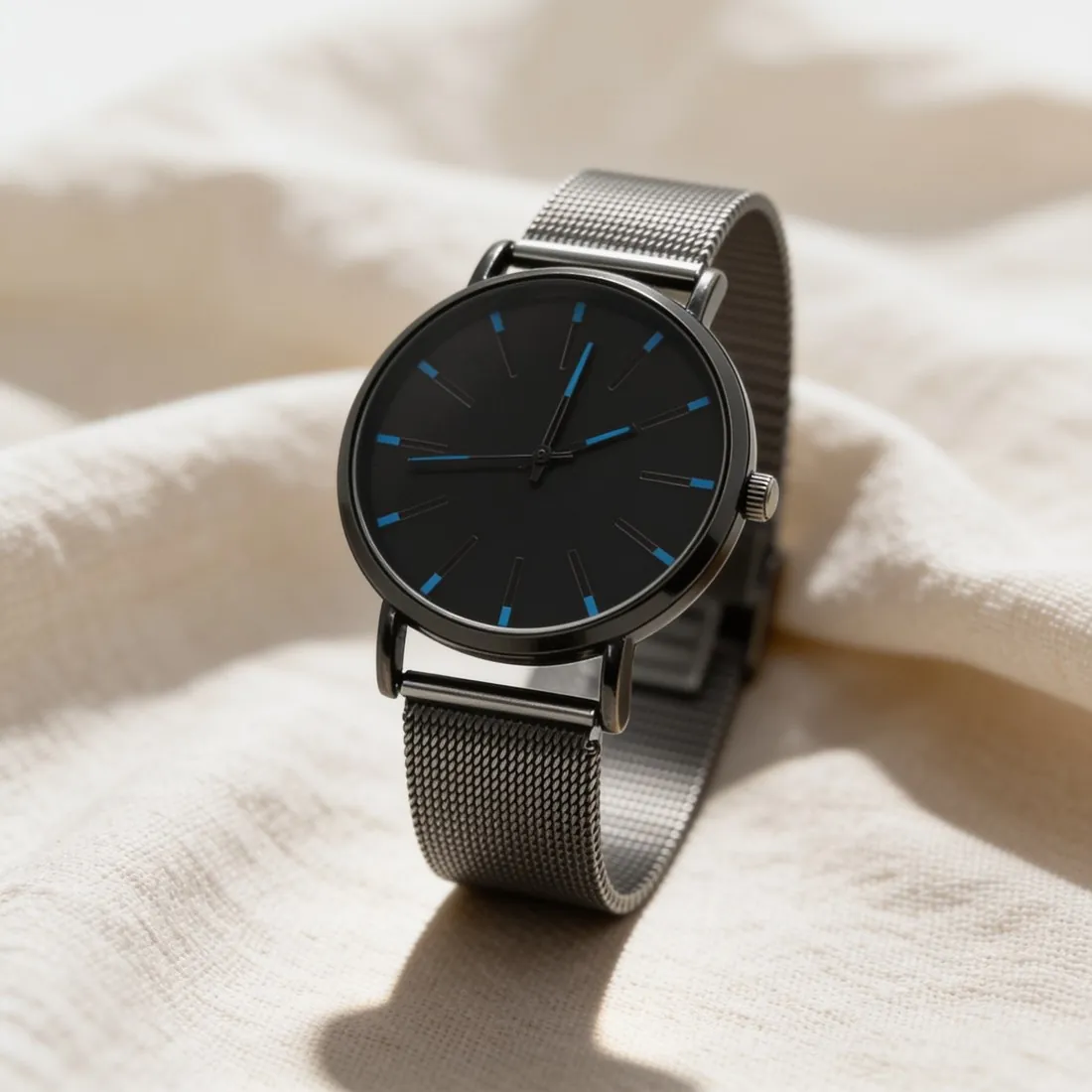
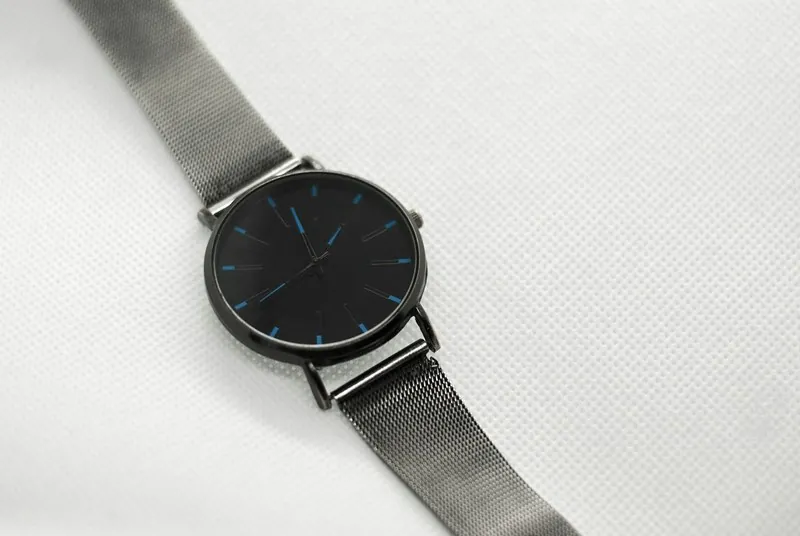
What the Media Manager makes of one file.
- 1
Display size and zoom size
For optimal display Shopware recommends a square image at a stated resolution, and a higher one if images should be zoomed in, giving an example. It notes that loading times can increase with resolution. Square 2K output is above the zoom example, so 2K covers both uses; 4K adds file weight the recommendation does not call for.
- 2
Three thumbnails per upload
By default Shopware generates three square thumbnail sizes for every uploaded image. The Keep aspect ratio setting of a media folder keeps the proportions of the original, so a rectangular image is not distorted by those square sizes. A square upload needs no correction; a portrait or landscape image depends on that setting being on.
- 3
Cover, variants and metadata
One image of a product is chosen as its preview image, used for example in the product listing; a 3D model cannot serve as the cover. A separate image can be assigned to each variant, and alt text and meta title are edited in the metadata of each media file. Plan the cover first, then one image per variant in the same scene and angle.
What Shopware asks for.
Source: Shopware 6 documentation — Products: Create products; Content: Media; Shopware Developer Documentation — Working with Media and Thumbnails. Checked 12 October 2026.
- Recommended
- Square product images with a resolution of 600 × 600 pixels are recommended for optimal display; other resolutions are also possible
- Zoom
- A higher resolution is recommended if images should be zoomed in, with 1,920 × 1,920 pixels given as an example; loading times can increase with higher resolution
- Formats
- The Media Manager accepts jpg, jpeg, png, webp, gif, svg, bmp, tiff, tif and eps image files
- Thumbnails
- Three thumbnail sizes are generated by default for every uploaded image: 400 × 400, 800 × 800 and 1,920 × 1,920 pixels
- Aspect ratio
- The Keep aspect ratio folder setting keeps the proportions of the original, so a rectangular image is not distorted by square thumbnail sizes
- Cover image
- One image is chosen as the preview image, for example for the product listing; a 3D model cannot be used as a product cover
- Variant images
- A separate image can be assigned to each variant
- Alt text
- The alt text and meta title are edited in the metadata of each media file
Photographing a product for a square Shopware cover.
- Arrange the product so that its height and width come closer together, a bag with its handle folded down or a scarf rolled, and it occupies a square instead of a narrow strip.
- Bring the phone near and hold it still: where shoppers zoom in, the enlarged view can show only the weave, grain or engraving that the source photo recorded.
- Where a product comes in several variants, give each its own source photo without moving the phone or the lamp; Shopware assigns a separate image to each variant, and a shift in framing shows when a shopper switches.
Product photos for Shopware, answered.
Do portrait images work in a Shopware shop?
Shopware recommends square images and states that other resolutions are also possible. The thumbnail sizes it generates by default are square, and the Keep aspect ratio setting of the media folder preserves a rectangular image's proportions, so it is not distorted. The product studio delivers portrait and landscape besides square; with that setting on, an upright image keeps its shape.
Which image appears in the Shopware product listing?
The one chosen as the preview image, the product's cover. It is picked from the product's media and has to be an image, since a 3D model cannot be used as a cover. In a listing the cover stands among many others at reduced size, so pick the view that shows the entire product on a calm studio ground or in a quiet scene, and keep the covers of a category in one style.
Does the Media Manager accept the files Herofab delivers?
Herofab's downloads are PNG or JPG files, and the Media Manager accepts both, together with webp, gif, svg, bmp, tiff and eps files. Alt text and a meta title are added afterwards in the metadata of each media file, not inside the image. Images made on a plan or with a credit pack carry no watermark, and every image holds a machine-readable AI marker in the file.
How much does it cost?
4 credits per image, plus one credit for 4K. The cost is shown before you generate, and if a job fails the credits are returned. The 20 free credits at sign-up cover 5 images with this tool.
Your next collection, shot this week.
20 credits at sign-up, no card required. Images made with free credits carry a watermark.