BigCommerce product images, made in the theme's ratio.
BigCommerce creates its thumbnails and other sizes from each uploaded image, and stretches or shrinks a picture whose ratio does not match the theme's settings. From a single photo, the product studio in Herofab puts a product on a studio ground or into a styled scene and delivers a catalogue in one aspect ratio, in 2K or 4K.
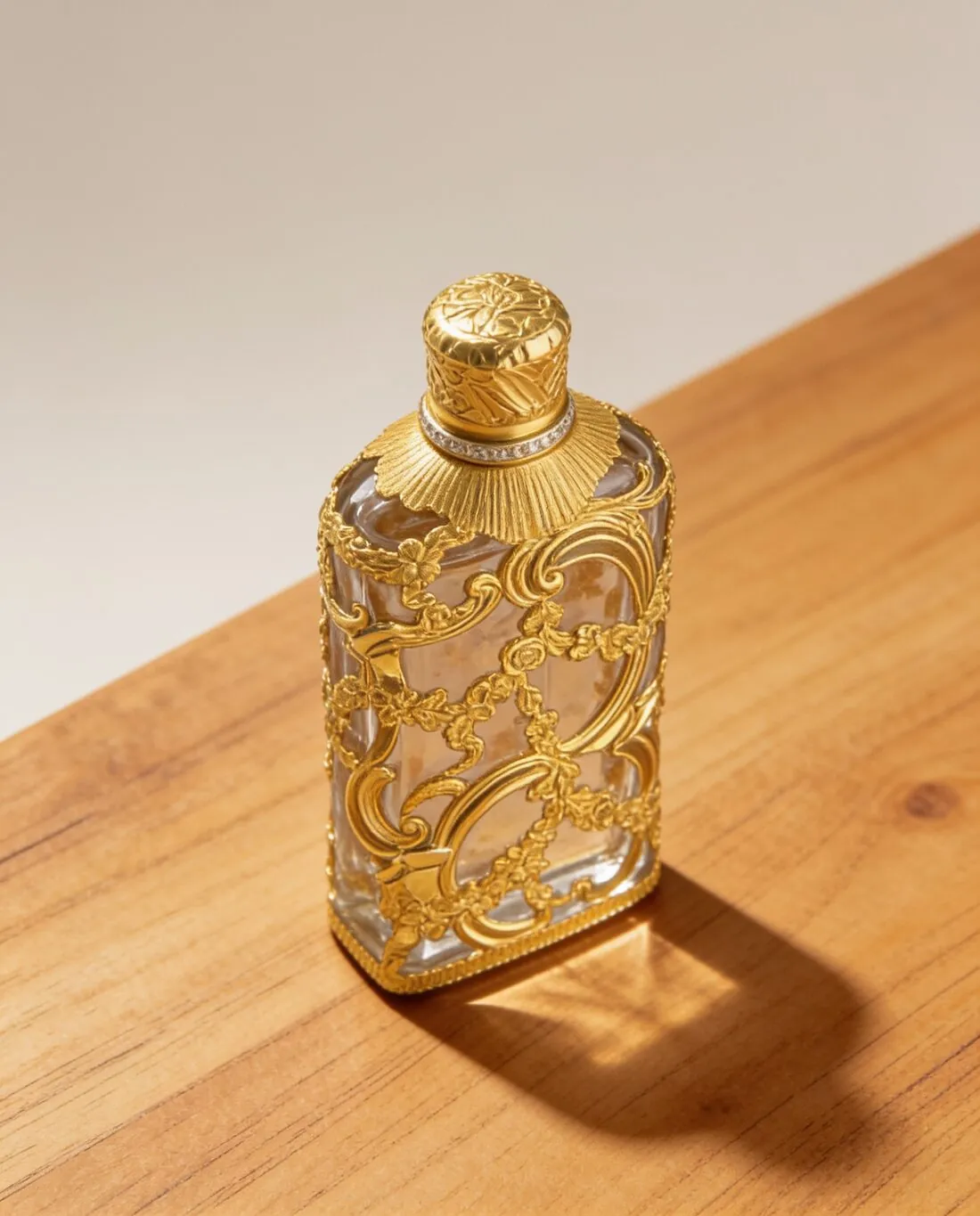
How a BigCommerce theme treats an upload.
- 1
A ratio the theme does not distort
BigCommerce advises keeping product images that serve as thumbnails at the same aspect ratio, and an image whose ratio differs from the theme's settings is stretched or shrunk. Find the ratio the theme expects and order every product in it. The product studio delivers square, portrait and landscape, so the shape is fixed when ordering.
- 2
Colour profiles are removed on upload
BigCommerce strips colour profiles from product images when they are uploaded and advises saving images without one. The store therefore shows the picture without its profile, and the colour check belongs after the upload: compare the product page with the item in daylight, beginning with strong reds, deep blues and metallic finishes.
- 3
The first image and its description
The first image in a product's list is the default image on the product page and in Quick View, so the clearest view of the whole product goes there. The image description becomes the alt tag, and where it is left blank BigCommerce uses the product name. Variant images take no description, and each variant holds a single image.
What BigCommerce asks for.
Source: BigCommerce Help Center — Adding Products (v3); How Products Work; Platform Limits; Optimizing Your Images; Adjusting Your Store Image Settings; Troubleshooting Your Store Images; Importing Product Variants, Images, and Other Complex Attributes; BigCommerce Developer Docs — Create Product Image. Checked 12 October 2026.
- Recommended
- 1,280 × 1,280 pixels is the optimal size for product images, though a theme's documentation may suggest a different size
- Formats
- JPEG/JPG, GIF, WebP and PNG; TIFF and PDF are not supported, and CSV imports also exclude BMP
- File size
- 8 MB maximum for each product and variant image
- Number
- Up to 1,000 images per product, of which 250 are displayed in the control panel, and 1 image per variant
- Zoom
- The theme's Image sizes setting controls the zoomed image shown on hover; the API documentation says to provide an image smaller than 1,280 × 1,280 pixels for the zoom image, otherwise a resized image is returned
- Thumbnails
- Thumbnails and other sizes are created from the uploaded image; the first image in the list is the default image on the product page and Quick View
- Aspect ratio
- Product images used as thumbnails are best kept at the same aspect ratio; an image whose ratio does not match the theme's settings is stretched or shrunk
- Automatic optimisation
- The BigCommerce CDN compresses images with a lossless setting and may convert the file format; Stencil themes based on Cornerstone 4.0 or newer use srcset to serve responsive image sizes
- Alt text
- The image description becomes the alt tag; if it is left blank the product name is used, and variant images do not support descriptions
- Colour profile
- Colour profiles are stripped from product images on upload, so saving images without a colour profile is advised
A source photo for a BigCommerce catalogue.
- Photograph tall products standing and wide ones lying level, with clear space around each, so that the product can stand whole in the theme's ratio whichever shape that turns out to be.
- Work in daylight with the flash off: BigCommerce removes colour profiles on upload, and a colour recorded truthfully in the source photo is the reference for the comparison afterwards.
- Keep engraving, stitching and label text in focus; the theme shows a zoomed image on hover, and softness in the source photo appears there before anywhere else.
Product photos for BigCommerce, answered.
Is 2K output large enough for a BigCommerce product page?
Square 2K output is above the size BigCommerce calls optimal for product images, and 4K is available as an option. BigCommerce adds that a theme's documentation may suggest a different size, so the theme's own figure is worth reading first. Thumbnails and the other display sizes are created from the upload, so one file serves them all; the optimal size is in the table on this page.
Which image does the zoom on hover show?
The theme's Image sizes setting controls the zoomed image shown on hover. BigCommerce's API documentation says to provide an image below a stated size for the zoom image, and that a resized image is returned otherwise. A 2K or 4K upload is therefore shown resized in that view, which makes the hover zoom the place to inspect a label or a seam on the live page.
What does BigCommerce do to an uploaded PNG or JPG?
The PNG and the JPG that Herofab offers for download are both accepted by BigCommerce, as are GIF and WebP; TIFF and PDF are not supported. Each product and variant image has a weight ceiling, given in the table on this page. The BigCommerce CDN then compresses images with a lossless setting and may convert the format, so a shopper's browser receives BigCommerce's version of the file.
How much does it cost?
4 credits per image, plus one credit for 4K. The cost is shown before you generate, and if a job fails the credits are returned. The 20 free credits at sign-up cover 5 images with this tool.
Your next collection, shot this week.
20 credits at sign-up, no card required. Images made with free credits carry a watermark.